Car Seat Ergonomics: What It Means for Long Sessions
Car seat ergonomics is the practice of arranging a seat’s geometry, support, and movement so your spine, pelvis, and limbs stay aligned naturally during long periods of sitting. The single most useful thing you can do right now: set your backrest to a slight recline (around 100–110 degrees), position your lumbar support to fill the curve of your lower back, and leave a two–three finger gap between the front seat edge and the back of your knees.
That one setup change, backed by CCOHS driving guidance, reduces spinal load and circulation problems before they start. Whether you’re behind a steering wheel, a gaming rig, or a work-from-home desk, the same principles apply.
Table of Contents
- What car seat ergonomics actually means and why it matters
- Key seat adjustments and what each one actually does
- Why movement matters more than the “perfect” static position
- How car-seat research applies to gamers and remote workers
- Your quick setup checklists for drivers and desk users
- Signs your seat is hurting you and when to get help
- Key Takeaways
- The posture habit nobody talks about enough
- Habitposture supports the habit, not just the setup
- Sources and further reading
What car seat ergonomics actually means and why it matters
Car seat ergonomics rests on five interconnected principles. Get all five working together and long sessions feel manageable. Miss one and the others can’t fully compensate.
- Support: Lumbar support maintains your spine’s natural inward curve (lordosis). Without it, the lower back rounds, discs compress unevenly, and fatigue sets in fast.
- Alignment: Your head sits directly over your shoulders, your shoulders over your hips. A well-designed seat back angle and head restraint height keep this stack intact.
- Adjustability: No single position fits every body. A seat that lets you tune height, depth, tilt, and lumbar position independently accommodates the full range of users, from the 5th-percentile female to the 95th-percentile male, per ergonomic design standards.
- Movement: Static posture causes tissue creep and fatigue. Small, frequent posture shifts restore circulation and intervertebral fluid exchange, which is why dynamic seating features matter.
- Integration with controls: A perfectly adjusted seat is undone the moment you have to reach too far for a steering wheel, keyboard, or mouse. Seat fit and workspace geometry must be considered together.
On materials: firm foam consistently outperforms soft cushioning for long-duration sitting. Soft seats feel comfortable in the first ten minutes but allow the pelvis to sink and the spine to round. Firmer, supportive foam preserves lordosis across a full session.
Key seat adjustments and what each one actually does
These are the settings that move the needle. Each one has a specific job.
Seat height controls your sightline and leg position. CCOHS guidance recommends raising the seat until you can see some clearance over the steering wheel, often about three inches (76 mm) while keeping your hips level with or slightly above the knees. For desk workers, seat height should let your feet rest flat on the floor with thighs roughly parallel to the ground.
Seat distance and leg clearance determine whether you can reach pedals or a keyboard without stretching. Slide forward or back until your arms and legs stay slightly bent at full extension. Then check the knee gap: you need a two–three finger gap between the front seat edge and the back of your knees. Excess seat pan length compresses the popliteal area and restricts blood flow.
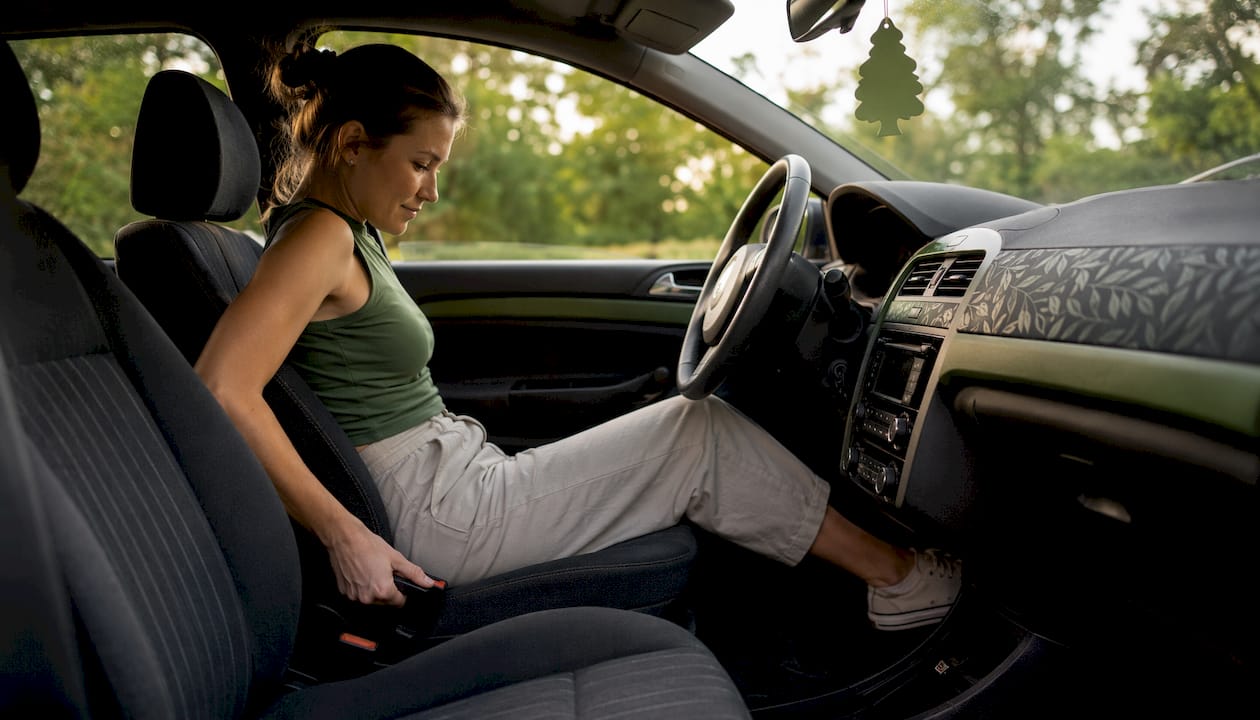
Backrest angle has a bigger effect on disc pressure than most people realize. A strict 90-degree upright posture actually increases lumbar disc load compared to a slight recline. Practical guidance consistently recommends a recline of around 100–110 degrees for long-duration sitting, which distributes spinal load more evenly and reduces the urge to slouch.
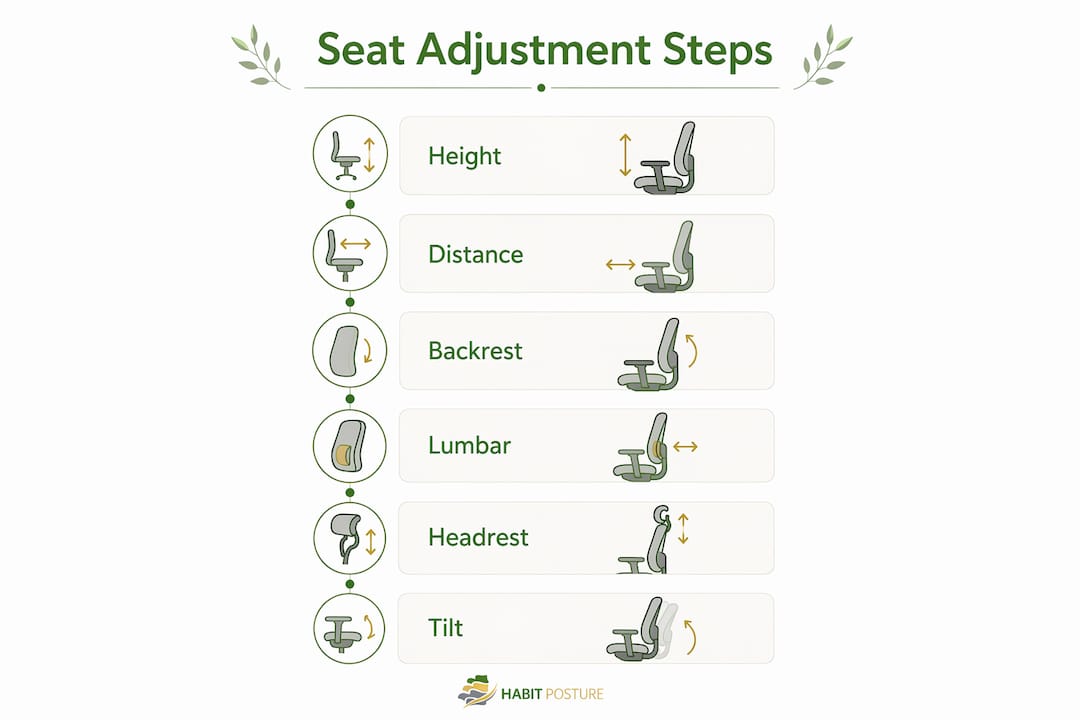
Lumbar support should be adjusted both in and out (depth) and up and down (height) until it fills the curve of your lower back without pushing your upper back away from the seat. The goal is to maintain lordosis, not force it.
Head restraint should sit at ear height and as close to the back of your head as comfortable. For screen users, this translates to monitor height: if your screen is too low, your head tilts forward and your neck muscles work overtime.
Seat cushion tilt and armrests round out the setup. A slight forward tilt on the seat pan reduces pressure behind the thighs. Armrests set at elbow height prevent shoulder roll and upper-back tension. Detailed armrest positioning guidance can help you dial this in precisely.
Why movement matters more than the “perfect” static position
Here’s what most seat guides skip: no static position, however well-adjusted, is good enough for a long session on its own.
A peer-reviewed simulated driving study published in Applied Ergonomics found that introducing small, slow, slightly perceptible seat movements — both fore-aft and cushion-backrest — produced trends toward lower discomfort in the neck, shoulders, lower back, buttocks, and ankles, with a significant reduction in buttock discomfort at the 60-minute mark compared to a static seat.
The physiological reason is straightforward. Static posture causes viscoelastic tissue creep: tissues deform slowly under sustained load and don’t recover until load is removed. Small movements, even subtle ones, interrupt that cycle by restoring local circulation and encouraging intervertebral fluid exchange. The ScienceDirect movement study also found that micro-movement systems reduced EMG activity in shoulder and upper-back muscles without distracting the user from the task.
If your seat doesn’t have dynamic features, you can replicate the benefit manually. Shift your weight slightly every 20–30 minutes, alternate between a slight forward lean and a relaxed recline, and stand or walk for two minutes every hour.
Pro Tip: Set a phone timer or use a desktop app like Stretchly to prompt a micro-posture shift every 25 minutes. You don’t need to stand up, just change the angle slightly. That small interruption is enough to reset tissue load.
How car-seat research applies to gamers and remote workers
The automotive research translates directly to desk and gaming setups, with one key substitution: pedals become keyboard and mouse reach, and the steering wheel becomes your monitor.
Lumbar support, seat depth, recline angle, and head restraint equivalence all carry over unchanged. What changes is the surrounding geometry. A driver’s controls are fixed by the vehicle; a gamer or remote worker can reposition the monitor, raise the desk, or add a keyboard tray. That flexibility is an advantage, but only if you use it intentionally.
For gamers, gaming chair posture practices mirror the driver setup almost exactly: lumbar support at the lower back, backrest reclined slightly past 90 degrees, seat pan depth leaving knee clearance, and a monitor at eye level to keep the head neutral. The main failure point in gaming setups is monitor height — screens placed too low pull the head forward within the first hour.
Remote workers face a different trap: the kitchen table or couch substitution. Neither provides adjustable lumbar support or proper seat depth. If you’re working from a non-adjustable chair, a firm lumbar roll placed at the curve of your lower back and a laptop stand that raises the screen to eye level are the two highest-return fixes. For a full desk setup ergonomics walkthrough, Habitposture’s guides cover monitor, keyboard, and chair integration together.
Your quick setup checklists for drivers and desk users
Driver 2-minute checklist
- Seat height: Raise until you see 76 mm (3 in) over the steering wheel; hips level with or slightly above knees.
- Seat distance: Slide until knees stay slightly bent at full pedal press; check the two–three finger knee gap.
- Lumbar support: Adjust depth and height to fill your lower-back curve.
- Backrest angle: Set to 100–110 degrees — not bolt upright.
- Head restraint: Align top of restraint with top of ears; move as close to your head as comfortable.
- Steering wheel: Pull toward you and down so arms stay slightly bent; check mirror alignment last.
Desk/gamer 5-minute checklist
- Seat height (1 min): Feet flat on the floor, thighs parallel to the ground, knees at roughly 90 degrees.
- Seat depth (30 sec): Slide pan so two–three fingers fit between the seat edge and the back of your knees.
- Lumbar support (30 sec): Position the support at the curve of your lower back, not mid-back.
- Backrest angle (30 sec): Recline slightly past 90 degrees to reduce disc pressure.
- Monitor height (1 min): Top of screen at or just below eye level; screen an arm’s length away.
- Armrests (30 sec): Set at elbow height so shoulders stay relaxed, not shrugged.
- Keyboard and mouse reach (1 min): Elbows close to your sides; wrists neutral, not bent up or down.
Signs your seat is hurting you and when to get help
Some problems adjustments can’t fix. Know the difference.
Red flags to watch for:
- Persistent low-back pain that starts within 20–30 minutes of sitting, even after adjusting your setup
- Numbness or tingling in your legs, feet, or hands during or after sessions
- Consistent forward head posture or shoulder rolling that returns immediately after you correct it
- Pressure or aching behind the knees after short sessions
Performance signals are subtler but just as telling: you’re reaching forward to hit keys or a controller, sliding toward the front of the seat, or repositioning constantly because no angle feels right.
When to get professional help: If symptoms persist for more than two weeks, include any neurological signs (tingling, weakness, numbness), or are affecting your work or gaming performance, see a physical therapist or certified ergonomist; for expert guidance on preventing workplace back pain, consult this practical physiotherapy guide. A PT can assess whether the issue is muscular, structural, or purely setup-related. An ergonomist can evaluate your full workstation, not just the chair.
Upgrade signals: Your seat has no adjustable lumbar range, a fixed pan depth that doesn’t fit your leg length, or foam that has softened to the point where it no longer holds your pelvis level. At that point, no amount of repositioning recovers the support the seat used to provide. The benefits of ergonomic equipment are well-documented for long-session users.
Key Takeaways
Good car seat ergonomics combines lumbar support, a slight backrest recline, proper seat height and knee clearance, and regular movement to protect your spine and reduce fatigue during long sitting sessions.
| Point | Details |
|---|---|
| Slight recline beats upright | Set your backrest to 100–110 degrees to distribute spinal load better than a strict 90-degree position. |
| Knee gap prevents circulation problems | Leave a two–three finger gap between the seat edge and the back of your knees to avoid vascular compression. |
| Movement is non-optional | Small posture shifts every 20–30 minutes reduce tissue creep and restore circulation when your seat lacks dynamic features. |
| Firm foam supports longer | Soft cushions feel comfortable initially but allow the pelvis to sink and the spine to round over a full session. |
| Habitposture for habit-based support | Habitposture’s guides and posture gear help you turn these adjustments into daily habits that hold across long screen sessions. |
The posture habit nobody talks about enough
Most ergonomics advice treats posture as a setup problem. Adjust the seat once, sit correctly, done. That framing misses the real challenge: your body drifts. Within 20 minutes of a perfect setup, most people have already shifted forward, dropped their head, or let their lumbar support stop doing its job.
The automotive research on dynamic seating points to something more honest: the goal isn’t a single correct position. It’s a body that keeps moving, even subtly, so no single tissue bears the full load for too long. That’s a habit problem, not a hardware problem.
Habitposture is built around exactly that insight. Gear that reminds your body what good posture feels like, guides that turn adjustments into repeatable routines, and a philosophy that skips the guilt and focuses on what actually sticks. Posture is a habit. The seat sets the stage, but the habit is what keeps you out of pain.
Habitposture supports the habit, not just the setup
Adjusting your seat is the first step. Keeping those adjustments working across an 8-hour session is where most people need support. Habitposture offers posture-support gear and practical guides designed for people who sit for long stretches — gamers, remote workers, and anyone who knows the 2 PM neck ache too well.
No medical braces. No lectures. Just wearable support that works while you work, and resources that help the habit stick. Visit Habitposture to explore posture supports and guides built for real screen-time life.
Sources and further reading
| Source | What it supports |
|---|---|
| CCOHS — Driving and ergonomics | Authoritative step-by-step seat adjustment guidance including knee gap, height, and lumbar positioning |
| ScienceDirect — Engineering movement into automotive seating | Peer-reviewed evidence that small, slow seat movements reduce discomfort during simulated driving |
| UNC DPT Capstone — Ergonomics of adult car seat design | Literature review of optimal seat features including adjustable lumbar, firm foam, and depth pulsating support |
| IJERT — Design specifications and ergonomic evaluation of car seats | Review of geometric parameters (seat back angle, pan depth, head restraint) and their effect on fatigue and injury risk |
| Habitposture blog | Practical posture guides for gamers and desk workers applying ergonomic principles to long screen sessions |