The Role of Ergonomics in Your Gaming Setup
An ergonomic gaming setup is the deliberate arrangement of furniture and devices to support natural posture and reduce injury risk during extended gaming or remote work sessions. The role of ergonomics in a gaming setup goes far beyond buying an expensive chair. It covers monitor height, keyboard angle, desk depth, wrist position, and break frequency. Poor configuration causes neck pain, carpal tunnel syndrome, and chronic back strain, regardless of how much you spend on gear. OSHA guidelines and recent esports research both confirm that equipment placement matters more than equipment quality alone.
What is the role of ergonomics in a gaming setup?
Ergonomics is a prevention system. It manages the risk created by the interaction between your body, your task, and your tools. When that interaction is misaligned, your muscles and joints absorb the cost over hours, sessions, and years.
Gamers and remote workers share the same core risk: prolonged static posture combined with repetitive upper-limb movements. A 2026 meta-analysis found high pain prevalence in the spine and upper extremities of esports players, with musculoskeletal injury risk rising significantly for those playing more than three hours per day. That finding applies equally to anyone grinding ranked matches or sitting through back-to-back video calls.
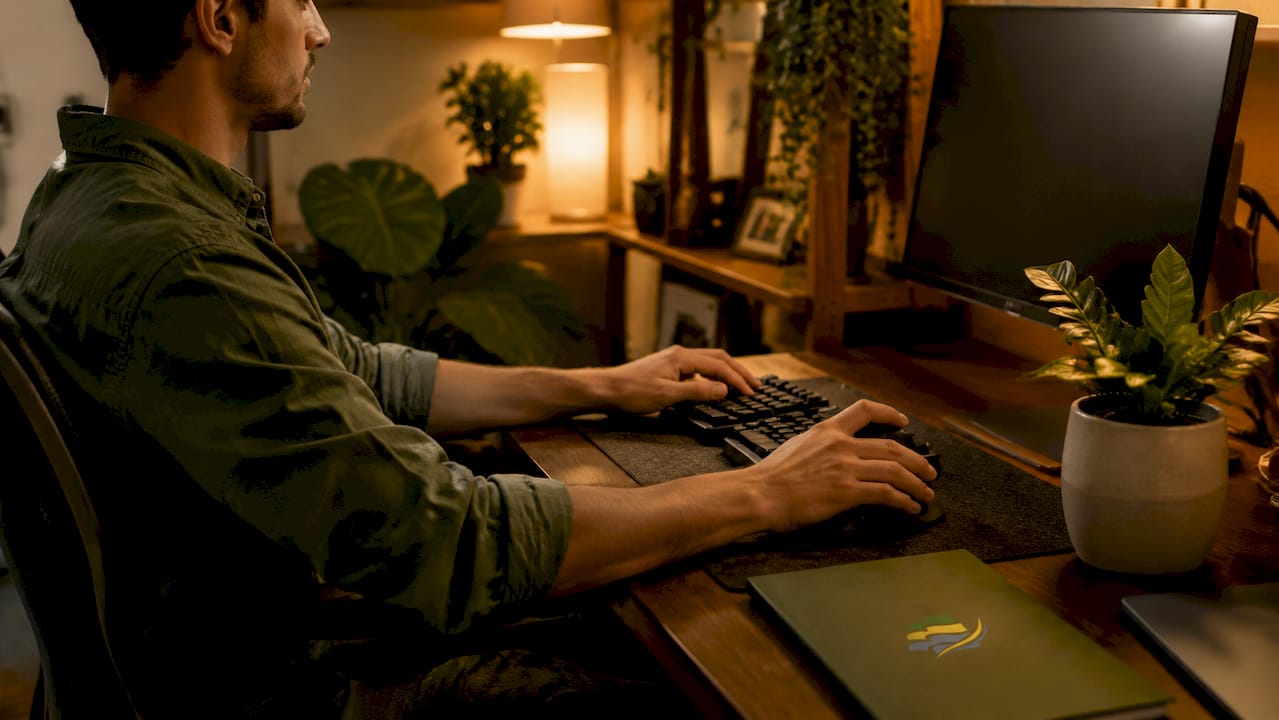
The three pillars of ergonomic gaming are neutral posture, correct device placement, and structured rest. Neutral posture means your spine stays in its natural curve, your wrists stay flat, and your neck stays level. Correct device placement means your monitor, keyboard, and mouse support that posture without forcing you to reach, hunch, or twist. Structured rest means your body gets recovery time before fatigue turns into injury.
Getting all three right does not require a complete workstation overhaul. Small, sequential adjustments produce measurable results. The key is knowing where to start and in what order.
How poor posture creates injury over time
Repetitive strain injuries like carpal tunnel syndrome and tendon injuries (tendinopathies) develop gradually. Your body adapts to awkward positions by shifting load to tendons and soft tissue instead of bone and muscle. Over weeks, that load accumulates into inflammation and pain.
Workstation height directly affects wrist posture. Improper desk height increases tendon and soft tissue stress, which reduces both comfort and precision. For gamers, that means slower reaction times and more errors. For remote workers, it means slower typing and more fatigue by midday.
Pro Tip: If your neck or wrists ache after a session, do not assume it is normal soreness. Early pain signals are your body’s warning system. Address the setup before the pain becomes chronic.
How to set up an ergonomic gaming workstation
The correct sequence for ergonomic setup is chair first, then monitor, then keyboard and mouse. Adjusting in this order prevents the common mistake of fixing one joint’s comfort at the expense of another.
Chair and desk positioning
- Chair height: Set it so your feet rest flat on the floor and your thighs are parallel to the ground. If your feet dangle, use a footrest.
- Lumbar support: Position it to fill the natural inward curve of your lower back. A chair without lumbar support forces your spine into a C-shape within minutes.
- Armrests: Adjust them so your elbows rest at roughly 90 degrees. Armrests set too high force your shoulders upward; too low and your arms pull your shoulders down.
- Desk height: Your forearms should be roughly parallel to the floor when your hands rest on the keyboard. Raise or lower the desk, or use a keyboard tray, to reach this position.
Monitor, keyboard, and mouse placement
- Monitor distance: Position the screen 20–28 inches from your eyes, roughly an arm’s length away. Viewing distance in this range reduces visual fatigue and supports a comfortable gaze angle.
- Monitor height: The top of the screen should sit at or just below eye level. This supports a slight downward gaze of 15–20 degrees, which reduces neck flexion and eye strain.
- Keyboard placement: Keep it flat or with a slight negative tilt (front edge higher than back). This keeps your wrists neutral rather than bent upward.
- Mouse placement: Position it directly beside the keyboard so your elbow stays close to your body. Reaching forward or to the side for the mouse loads the shoulder and forearm.
| Setup Element | Target Position | Common Mistake |
|---|---|---|
| Monitor distance | 20–28 inches from eyes | Too close, causing eye strain |
| Monitor height | Top at or below eye level | Too high, causing neck extension |
| Chair height | Feet flat, thighs parallel | Too high, causing dangling feet |
| Keyboard angle | Flat or slight negative tilt | Positive tilt, causing wrist extension |
| Mouse position | Beside keyboard, elbow close | Too far right, loading the shoulder |
Pro Tip: Apply the 20-20-20 rule for eye health. Every 20 minutes, look at something 20 feet away for 20 seconds. Pair this with a standing or stretching break every 30 minutes to reset your posture.
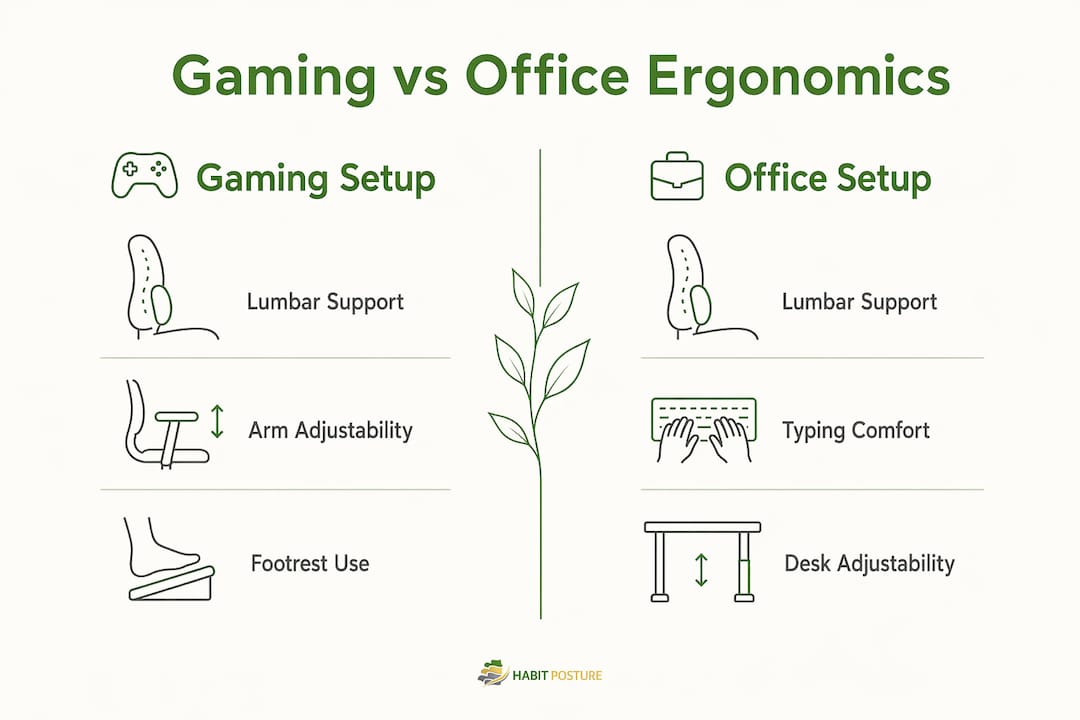
Gaming setups vs. office workstations: how do the ergonomic demands differ?
Gaming and office work share the same basic ergonomic framework, but the demands are not identical. Understanding the differences helps you configure your setup for your actual tasks.
Office workers typically alternate between typing, reading, and video calls. Their hand movements are moderate in intensity and varied in pattern. Gamers, by contrast, make high-speed, high-precision mouse and keyboard inputs for hours without variation. That repetitive intensity increases the load on the forearm extensors and wrist tendons faster than standard office typing does.
Gaming chairs and office chairs also serve overlapping but distinct purposes. A quality ergonomic gaming chair with adjustable height and a footrest addresses the extended static sitting that gaming demands. A high-back office chair with lumbar support suits the more varied posture of remote work. Many gamers who also work from home benefit from a chair that performs both roles well.
| Feature | Gaming setup priority | Office setup priority |
|---|---|---|
| Lumbar support | High | High |
| Adjustable armrests | High | Moderate |
| Footrest | Useful for extended play | Less common |
| Monitor refresh rate | High (performance) | Low (standard display) |
| Wrist support | Critical for mouse precision | Moderate for typing |
Adjustable desks serve both audiences equally well. Standing for 15–20 minutes per hour reduces the cumulative load of prolonged sitting, which research links directly to musculoskeletal strain in both gamers and desk workers.
What are the most common ergonomic mistakes in gaming setups?
Most setup errors fall into five categories. Each one is fixable without buying new equipment.
- Chair too high or too low. If your feet dangle, your hamstrings press against the seat edge, cutting off circulation. If the chair is too low, your hips drop below your knees, flattening your lumbar curve.
- Monitor at the wrong height. A monitor set too high forces your chin up and compresses the cervical spine. A monitor set too low forces your neck into a sustained forward bend. Both cause neck pain within a single session.
- Keyboard and mouse too far forward. Reaching forward loads the shoulder and forearm. Input device placement changes joint angles enough to affect both comfort and precision over a long session.
- Skipping breaks. Structured micro-breaks are as important as physical setup for preventing repetitive strain. Sitting still for two hours, even in a perfect chair, accumulates fatigue in the same muscle groups.
- Ignoring early pain signals. Wrist tingling, neck stiffness, and shoulder tightness are early warnings. Waiting until the pain is sharp means the injury is already established.
Pro Tip: Fix your setup in sequence. Start with chair height so your feet are supported. Then adjust monitor height and distance. Then position your keyboard and mouse. This order prevents tradeoffs where fixing one joint creates strain in another.
Key takeaways
A properly configured ergonomic gaming setup prevents musculoskeletal injury and improves comfort and performance during long sessions, making setup sequence and break habits as important as the equipment itself.
| Point | Details |
|---|---|
| Sequence your adjustments | Start with chair height, then monitor, then keyboard and mouse to avoid shifting strain between joints. |
| Monitor distance and height matter | Position the screen 20–28 inches away with the top at or below eye level to reduce neck and eye strain. |
| Input device placement is critical | Keep keyboard flat and mouse beside it to maintain neutral wrists and reduce forearm load. |
| Breaks are non-negotiable | Take a movement break every 30 minutes and use the 20-20-20 rule to protect eyes and posture. |
| Gaming and office needs overlap | A quality ergonomic chair with lumbar support and adjustable height serves both gaming and remote work effectively. |
Why I think most gamers are solving the wrong problem
Most gamers I talk to focus on upgrading their monitor or buying a new mouse when they start feeling pain. That instinct is understandable. New gear feels like progress. But the research is clear: configuration outweighs equipment quality in determining ergonomic outcomes.
I have seen people with $1,500 gaming chairs sitting with their feet dangling and their monitor at forehead height. The chair is irrelevant if the setup sequence is wrong. What actually moves the needle is adjusting the chair first, then the monitor, then the input devices, in that order, and building a break habit around it.
The other thing most articles skip is the cumulative nature of these injuries. You do not feel carpal tunnel syndrome building. You feel fine for months, and then one day your wrist hurts and it does not stop. That is why prevention through setup and structured breaks matters so much more than treatment after the fact.
My honest recommendation: spend 20 minutes this week adjusting your setup using the sequence in this article before you spend another dollar on gear. The payoff is real, and it costs nothing.
— Thomas
Habitposture gear built for long sessions
Your setup does the heavy lifting, but the right support gear makes the difference between grinding comfortably and grinding through pain.

Habitposture builds products for people who spend 8+ hours at a screen. The posture corrector and massage gun combination helps your body recover after long sessions and retrains the muscle habits that keep you slouching forward. Pair it with an ergonomic chair with flip-up arms that adjusts to your body rather than forcing your body to adjust to it. No guilt trips. No lectures. Just gear that works while you play, work, or decompress.
FAQ
What does ergonomics mean for a gaming setup?
Ergonomics in a gaming setup refers to configuring your chair, desk, monitor, keyboard, and mouse to support natural body posture and reduce injury risk during extended play. The goal is to align your equipment with your body mechanics, not the other way around.
How far should my monitor be from my face while gaming?
Position your monitor 20–28 inches from your eyes, with the top of the screen at or just below eye level. This distance supports a comfortable downward gaze and reduces both neck strain and visual fatigue.
How often should gamers take breaks?
A movement break every 30 minutes is the standard recommendation for gamers and remote workers. Pair it with the 20-20-20 rule for eye health: every 20 minutes, look at something 20 feet away for 20 seconds.
Is a gaming chair better than an office chair for long sessions?
Both work well if they offer lumbar support and height adjustability. A gaming chair with a footrest suits extended static play, while a high-back office chair suits varied remote work postures. The best choice depends on your primary task and body size.
What is the most common ergonomic mistake gamers make?
The most common mistake is adjusting the monitor or input devices before setting the chair height correctly. Start with chair height so your feet are fully supported, then work upward through monitor and keyboard placement to avoid creating new strain while fixing existing problems.