Ergonomic Workstation Setup for Open Offices
An ergonomic workstation setup is defined as the deliberate configuration of your chair, desk, monitor, and accessories to align your body in a neutral posture that reduces physical strain. In an open office environment, that definition gets harder to execute. Shared layouts, unpredictable lighting, and ambient noise all work against your body. Musculoskeletal disorders cost US businesses $45 billion annually, and the primary driver is poor workstation alignment. Getting your ergonomic workstation setup right in an open office is not a luxury. It is the difference between leaving work energized and leaving with a neck that feels like it lost a fight.
What are the critical ergonomic principles for open office workstations?
Ergonomics is a system designed to fit the environment to the human body, not the other way around. Discomfort is a signal, not a personality trait. When your neck aches by 2 PM, your workstation is telling you something is off.
Neutral posture is the baseline for every adjustment you make. Your spine should maintain its natural S-curve, your shoulders should sit relaxed, and your elbows should rest at roughly 90 degrees. Deviation from this position, even slightly, compounds over an eight-hour day into real injury risk.
Chair setup is the highest-impact adjustment in any workspace ergonomics plan. A seat-back recline of 100°–110° with lumbar support reduces disc pressure and keeps the lower spine in a neutral position. Most professionals skip this step entirely and sit bolt upright, which actually increases spinal load.
Monitor placement is the second most critical factor. Position the top of your screen at eye level, roughly an arm’s length away (about 20–28 inches). Looking down at a screen for hours compresses the cervical spine. Looking up causes eye fatigue and neck extension strain.

Keyboard and mouse placement should keep your wrists flat and your forearms parallel to the floor. Angled wrists, even slightly upward, increase pressure on the carpal tunnel over time.
Open offices add specific challenges that standard ergonomic guides ignore:
- Lighting variability: Shared spaces often mix overhead fluorescents with natural light from windows, creating glare on screens. Position your monitor perpendicular to windows, not facing them.
- Noise distraction: Ambient conversation forces you to lean forward and tense your shoulders unconsciously. This is a posture problem, not just a focus problem.
- Shared furniture: Hot-desking means you inherit someone else’s chair settings every morning. Build a 90-second reset routine to readjust before you start work.
Pro Tip: Apply the 20-20-20 rule every 20 minutes: look at something 20 feet away for 20 seconds. This single habit prevents Computer Vision Syndrome, which is especially common in open offices where screen time is uninterrupted.
How does open office layout affect ergonomic workstation comfort?
Open office design directly shapes how well any individual workstation can perform ergonomically. A perfectly adjusted chair means little if the surrounding environment creates constant physical tension.
Space allocation sets the foundation. Moderate-density open offices allocate 65–85 square feet per workstation, expanding to 95–130 square feet when collaboration areas are included. Cramped layouts force awkward body angles and limit the ability to reposition throughout the day.
Zoning is the most underused tool in open office design. Experts recommend dedicating 30–40% of floor space to quiet focus pods, with direct, unobstructed access from workstations. When you can move easily between a collaborative zone and a quiet zone, you protect your concentration and your posture.
| Layout factor | Recommended standard | Ergonomic benefit |
|---|---|---|
| Space per workstation | 65–85 sq ft (moderate density) | Allows repositioning and accessory placement |
| Quiet zone allocation | 30–40% of total floor space | Reduces acoustic stress and shoulder tension |
| Collaboration zone | 60–70% of total floor space | Supports movement and varied postures |
| Furniture type | Modular, height-adjustable systems | Accommodates diverse body types and tasks |
Acoustic design belongs in the original floor plan, not as an afterthought. Acoustic distractions are a primary ergonomic stressor in open offices, triggering forward head posture and shoulder guarding that accumulate into chronic pain. Acoustic panels, soft surfaces, and white noise systems all reduce this load.
Modular furniture gives open offices the flexibility that fixed layouts cannot. Modular systems can reduce real estate costs by up to 30% while allowing teams to reconfigure workstations as needs change. That flexibility also means height-adjustable desks can be introduced without a full renovation.
How do you set up your open office workstation ergonomically?
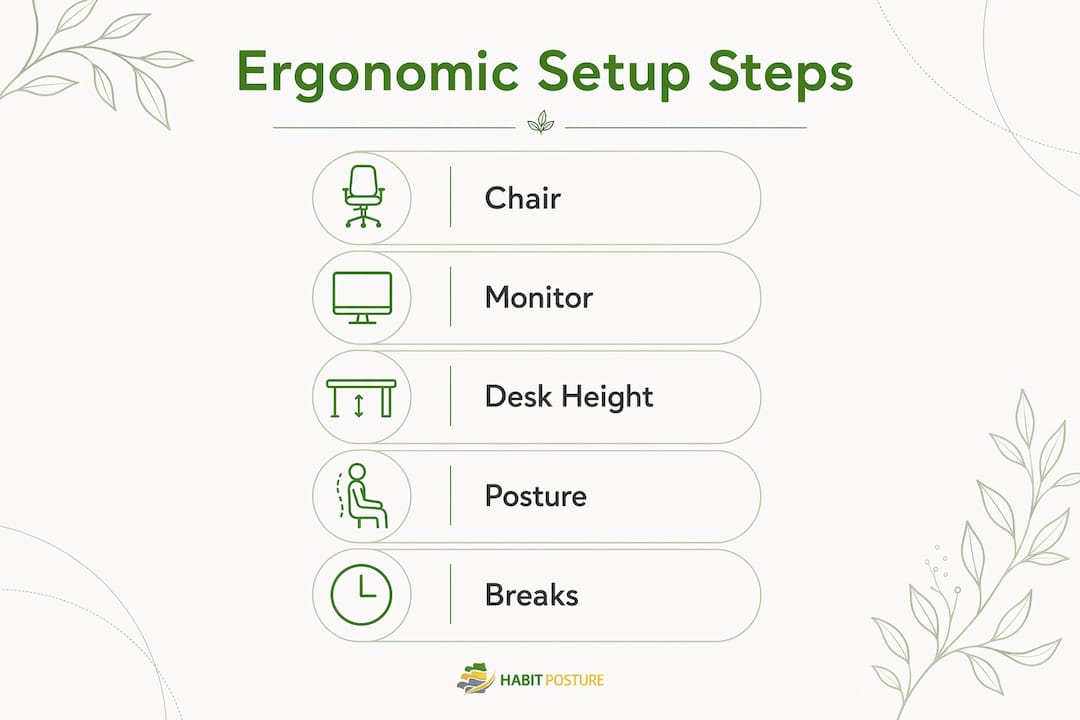
A proper ergonomic setup follows a specific sequence. Start from the floor up, adjusting one element at a time so each change builds on the last.
-
Adjust your chair first. Set seat height so your feet rest flat on the floor and your thighs are parallel to it. Set the backrest to a 100°–110° recline and confirm the lumbar support sits in the curve of your lower back. Chair height directly affects spinal alignment throughout your entire body.
-
Set desk height to match your elbows. With your arms hanging relaxed, your desk surface should meet your forearms at a 90-degree angle. If the desk is fixed and too high, raise your chair and add a footrest.
-
Position your monitor at arm’s length. Sit back in your chair and extend one arm forward. Your fingertips should nearly touch the screen. The top edge of the monitor should sit at or just below eye level.
-
Place keyboard and mouse on the same surface level. Both should sit close enough that your elbows stay near your body. A keyboard tray can help if your desk surface is too high.
-
Address lighting before you start working. Tilt your monitor slightly downward (10–20 degrees) to reduce overhead glare. If your workstation faces a window, use a screen filter or request a repositioned desk.
-
Add ergonomic accessories where needed. A document holder keeps reference materials at eye level and eliminates repetitive neck rotation. A footrest supports circulation if your feet do not reach the floor. Wrist supports reduce pressure during typing breaks, not during active typing.
-
Control your acoustic environment. If your workstation sits in a high-traffic zone, use noise-canceling headphones during focus work. Advocate for your workstation to be placed near a quiet pod rather than a main walkway.
Pro Tip: Set a phone alarm for every 30–60 minutes as a reminder to alternate sitting and standing. Posture variation is more protective than any single “perfect” position held all day.
Height-adjustable desks reduce discomfort by 22% and increase output by 15%. That is not a minor gain. If your office does not yet offer sit-stand desks, make the business case with those numbers.
What common ergonomic mistakes should professionals avoid?
Most ergonomic failures in open offices are not equipment problems. They are habit problems. The right chair is useless if you never adjust it.
- Skipping chair adjustments at shared desks. Hot-desking is common in open offices. Sitting in someone else’s settings for eight hours is the fastest route to back pain. Adjust every time you sit down.
- Using a laptop without external peripherals. The laptop paradox is real: raising the screen to eye level forces your wrists into an awkward angle unless you add an external keyboard and mouse. Using a laptop flat on a desk is equally problematic, forcing your neck down.
- Setting the monitor too low or too close. A screen sitting below desk level causes constant neck flexion. A screen too close causes eye convergence strain. Both are correctable in under a minute.
- Ignoring wrist angle during mouse use. A mouse placed too far from the keyboard forces your shoulder into abduction. Keep it within easy reach so your elbow stays close to your body.
- Treating acoustic discomfort as normal. Noise-driven tension in the shoulders and jaw is a physical ergonomic problem. It does not resolve on its own.
- Never reassessing your setup. Bodies change. Tasks change. A setup that worked six months ago may no longer fit your current role or workstation.
“The common failure point in ergonomics is execution rather than equipment availability.” Peer assessments and random self-checks improve compliance more than any single training session.
How can professionals maintain ergonomic benefits long-term?
Sustaining good posture in an open office requires a system, not willpower. Build habits that run in the background while you work.
- Alternate sitting and standing every 30–60 minutes. Prolonged static posture, even in a “correct” position, increases muscle fatigue.
- Perform microbreaks every hour. Stand, roll your shoulders back, and stretch your hip flexors for 60 seconds. This resets accumulated tension before it becomes pain.
- Apply the 20-20-20 eye rule consistently. Set it as a recurring reminder rather than relying on memory.
- Use peer accountability. Ask a colleague to flag when they notice you slumping. Peer assessments improve ergonomic adherence more reliably than self-monitoring alone.
- Advocate with management. Ergonomic furniture requests carry more weight when framed around productivity and injury cost data. The $45 billion annual cost of musculoskeletal disorders is a compelling number for any facilities team.
Pro Tip: Explore the benefits of ergonomic office equipment before your next equipment review cycle. Having specific product categories in mind makes the conversation with management faster and more productive.
Posture is a habit. The professionals who feel best at 5 PM are not the ones with the most expensive chairs. They are the ones who reset their setup every morning and move consistently throughout the day.
Key takeaways
A proper ergonomic workstation setup in an open office requires chair adjustment, smart layout choices, and consistent movement habits working together.
| Point | Details |
|---|---|
| Chair adjustment is the top priority | Set backrest to 100°–110° recline with lumbar support to reduce disc pressure. |
| Open office zoning protects posture | Quiet zones covering 30–40% of floor space reduce acoustic stress and shoulder tension. |
| Height-adjustable desks deliver measurable gains | Sit-stand desks reduce discomfort by 22% and increase output by 15%. |
| Laptop use requires external peripherals | Add an external keyboard and mouse to solve the screen-height-versus-wrist-angle conflict. |
| Consistent reassessment sustains results | Peer checks and daily self-resets prevent setup drift and long-term injury risk. |
What I’ve learned from watching professionals set up open office workstations
Most professionals treat ergonomics as a one-time event. They attend a setup session, adjust their chair once, and never touch it again. That is the single biggest mistake I see, and it is almost universal.
The open office makes this worse. Shared desks, rotating seating, and variable lighting mean your environment changes constantly. A setup that was correct on monday may be completely wrong by thursday if you have moved to a different workstation. The professionals who avoid chronic pain are the ones who treat their setup like a daily checklist, not a solved problem.
The other thing I have noticed: people underestimate acoustic stress as a physical issue. When the office is loud, you lean forward. Your shoulders creep up. Your jaw tightens. None of that feels like “ergonomics,” but all of it loads your spine and soft tissue. Requesting a workstation near a quiet pod is not a comfort preference. It is a legitimate ergonomic intervention.
My practical advice: spend 90 seconds every morning running through your chair, monitor, and keyboard positions before you open a single application. Pair that with a desk setup review every few months to catch drift before it becomes pain. The investment is small. The return is a body that still works well at the end of the week.
— Thomas
Habitposture gear built for the open office grind
Your workstation setup handles the external environment. Habitposture handles what happens to your body while you sit in it.
Habitposture designs posture support gear for professionals who spend eight or more hours at a screen, not for people recovering from surgery. The gear works while you work. You wear it, your body gets the feedback it needs, and good posture becomes the default rather than the effort. No bulk, no guilt, no lecture. If your neck starts aching around 2 PM and your shoulders roll forward without you noticing, Habitposture is built for exactly that. Check out the full range at Habitposture and find the support that fits your workday.
FAQ
What is an ergonomic workstation setup?
An ergonomic workstation setup is the configuration of your chair, desk, monitor, and accessories to support neutral body posture and reduce physical strain during work.
What chair angle is best for open office workstations?
A seat-back recline of 100°–110° with lumbar support reduces disc pressure and maintains a neutral spine, making it the recommended setting for desk workers.
How much space does an ergonomic open office workstation need?
Moderate-density open offices allocate 65–85 square feet per workstation, expanding to 95–130 square feet when collaboration areas are included.
Why do open offices cause more posture problems than private offices?
Shared desks, variable lighting, and acoustic distractions in open offices create physical tension and prevent consistent workstation setup, compounding posture strain over time.
How often should you reassess your workstation setup?
Reassess your setup every morning if you use shared desks, and conduct a full review every few months to catch gradual drift before it causes injury.